
Tips for using ApplyBtn on job application forms
Ten tips for using ApplyBtn, from 234 real job application forms: what it fills for you, what it writes for you, and the few things you still answer yourself.
These are our tips for using ApplyBtn, an AI Job Application Assistant browser extension (today for Chrome), and our tips for filling out job applications with it. To see what application forms ask for, we took a sample from our data: 234 complete application forms from 130 sites, April to October 2026. Every form in the sample asked for a name, an email and a CV upload. Two thirds of the sites were companies' own career pages, not the big job platforms.
This guide shows what those forms asked for, and how to handle that work with ApplyBtn, including the parts you answer yourself. It is the reference for everyday use and for the cases that need care. For your first application, start with the step-by-step guide.
The tips:
- Upload your CV versions and choose one for this application
- Give your CV specific experience, not more words
- Click Remember for details missing from your CV
- Answer the AI's question when it needs more context
- Use Autofill for the typing
- Close the sidebar and keep Autofill on the strip
- Copy details from your profile data on any form
- Generate answers, or write them yourself
- Keep notes for the answers your CV cannot give
- Generate a cover letter when the form asks for one
What we found in 234 application forms
Each line: how many forms in our sample asked for it, and what to have ready.
- 88% asked for a phone number. Check that the contact details in your CV are current.
- 52% asked for your city or location. If it is not in your CV, type it once and let ApplyBtn remember it (Tip 3).
- 51% asked for profile or portfolio links. Have your LinkedIn, GitHub or portfolio links ready.
- 45% asked for your expected or current salary. Decide your answer for this application (Tip 9).
- 44% had a cover letter box or upload. Be ready to write a letter for this job (Tip 10).
- 37% asked for your notice period or start date. Decide it before you start (Tip 9).
- 33% had an open question to write in sentences. Have specific examples of your work ready (Tips 2 and 8).
- 26% asked "How did you hear about us?" Keep a short answer ready.
- 17% asked about your right to work or a visa. Know your answer; it is yours to give (Tip 9).
- 11% of the forms in our sample requested work history in separate fields. ApplyBtn fills these from your CV where supported; review the details and complete anything missing.
- 8% asked how many years of experience you have in a tool or a field.
Name, email and the CV upload were on every form, because that is how the sample was chosen.
Tip 1. Upload your CV versions and choose one for this application
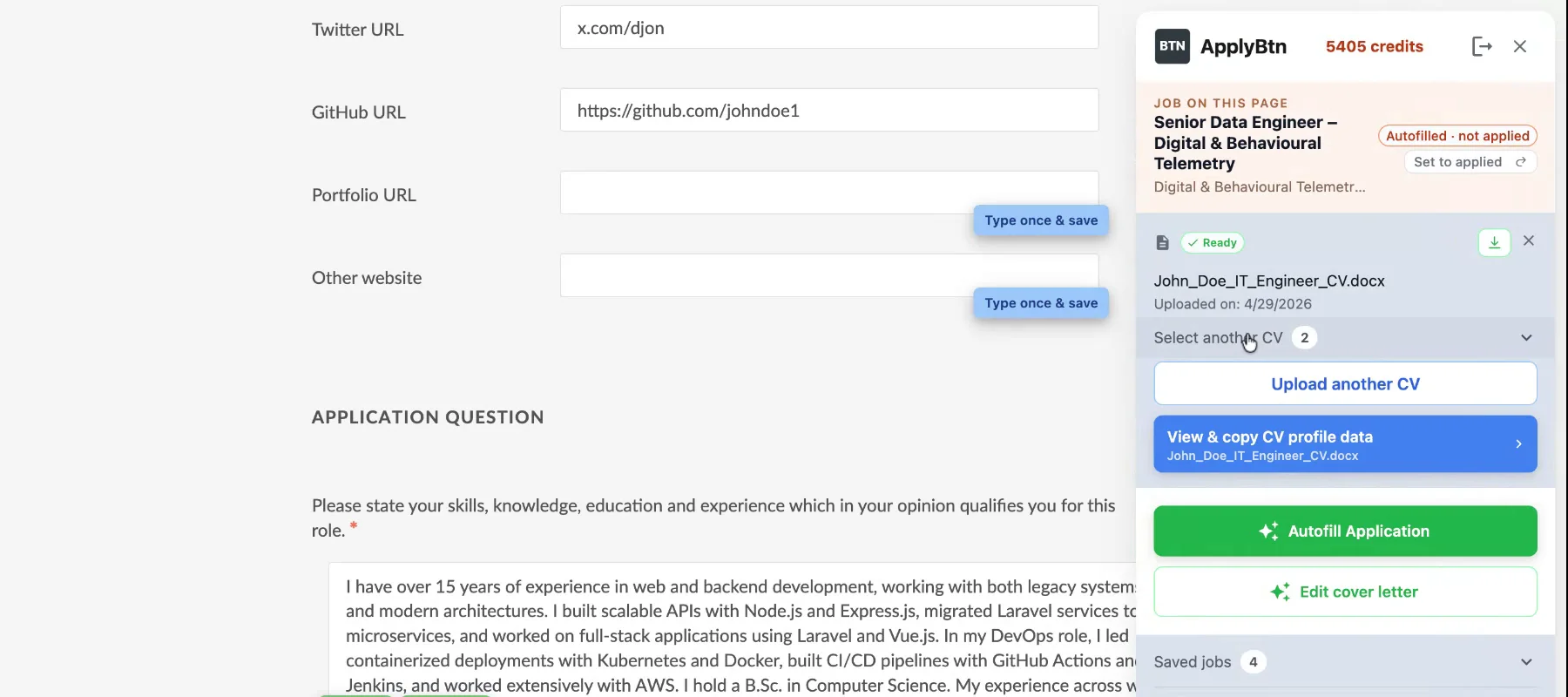
You can upload more than one CV: one per kind of role, or one per language. In the sidebar, pick the CV for this application with "Select another CV". You can switch while you are on the form. Each CV keeps its own profile.
Tip 2. Give your CV specific experience, not more words
Everything ApplyBtn writes for you starts from your CV. A vague line gives a vague answer. Here is a test we ran with a made-up CV and a made-up job post for a platform engineer (the post asks for AWS, Terraform and a move to serverless). Same question, "Describe your relevant experience for this role", two versions of one line in the CV.
The vague line, "Responsible for improving the infrastructure", got this:
At SkyNet Systems, I work on improving infrastructure.
The specific lines, "Developing infrastructure as code with Terraform. Managing cloud-native apps on AWS. Led migration of services to serverless architecture", got this:
At SkyNet Systems, I manage cloud-native apps on AWS, build infrastructure with Terraform, and led a migration of services to serverless architecture.
The second answer says what the job asks for. The first cannot, because the CV never said it. ApplyBtn is told to use only your CV and what you tell it (Tip 4), so it did not invent the missing facts. (Real ApplyBtn output, recorded on 28 October 2026.)
So for each line in your CV, ask: what did I do, with which tools, and what came of it? Keep the CV focused. The next two tips cover what is not in it.
Tip 3. Click Remember for details missing from your CV
A missing phone number, address or profile link does not mean a new CV. On the form:
- Type the value into the field.
- Click Remember on the field.
- ApplyBtn saves it to the profile of the CV you selected. Next time, Autofill fills it.
It belongs to that CV's profile. If you switch CVs, you remember it there too.
Tip 4. Answer the AI's question when it needs more context
Your CV cannot hold every project or situation. When you click Generate on a question, ApplyBtn writes a draft from your CV. If it needs a detail your CV does not say, the button under the draft turns orange and reads AI has a question. Then:
- Click AI has a question. The panel "Improve the answer with AI" opens with the question, the draft and what the AI wants to know.
- Type the detail under What should AI know? and click Generate.
- Read the refined answer and click Add to form.
The detail is used for that answer. Your CV file stays as it is.
Tip 5. Use Autofill for the typing
Here is how to autofill job applications with ApplyBtn's AI Job Application Autofill:
- Open the job application form. ApplyBtn works on the page where you apply.
- Click Autofill. ApplyBtn fills the fields it knows from your CV: contact details, links, work history, education, the CV upload.
- Check the fields it filled, and finish the rest. Text fields it could not fill get a "Needs your input" marker.
AI Job Application Autofill is free. Credits are used only when ApplyBtn writes for you (Tips 8 and 10).
What stays yours: dropdowns, checkboxes and radio buttons. ApplyBtn leaves them to you, with two exceptions: the "I currently work here" box, and a searchable country or city box when your CV value matches an option. On multi-step forms like Workday, ApplyBtn does not fill the custom date pickers and some dropdowns yet, so expect to finish those by hand. Save your progress at every step, and use the form's own Back and Next buttons, not the browser's.
Salary expectations, your right to work and other personal declarations also stay yours. ApplyBtn is built not to guess them from your CV.
Tip 6. Close the sidebar and keep Autofill on the strip
If the sidebar is in the way, close it with the X at the top. A small strip stays at the edge of the page, with the Autofill button on it. ApplyBtn remembers your choice: next time it opens as the strip, and the green arrow at the top of the strip brings the sidebar back.
Tip 7. Copy details from your profile data on any form
ApplyBtn's AI Job Application Autofill reads your CV once, when you upload it. Everything it found is in View & copy CV profile data in the sidebar: personal details, links, summary, every job, education, certifications, languages. Each line has a copy button.
Your CV is your profile. If you keep several CVs, each one has its own profile: the panel shows the profile of the CV selected in the sidebar, and everything you save with Remember goes into that CV's profile only. Switch the CV, and the profile switches with it.
This works on any page, with or without Autofill. If ApplyBtn does not recognise a form, or a field is one it does not fill:
- Open the sidebar and click View & copy CV profile data.
- Find the value.
- Click copy, and paste it into the field.
Viewing and copying is free.
Tip 8. Generate answers, or write them yourself
One in three forms in our sample had a question to answer in sentences. The most common ones:
- Why do you want to work here? / Why this role?
- Your skills and tools
- Tell us about yourself
- Describe your relevant experience / What makes you a good fit?
- Tell us about a time when…
- Anything else you want to add?
For each one, you can click Generate on the field. The AI Job Application Answer Generator, part of Autofill, writes a draft from your CV and the job description. You can click Generate on several questions at once. Then read the draft: is every fact true, does it answer the question, does it sound like you? Edit it, or click Improve and say what to change. Generating uses credits.
Or write the answer yourself. Keep the job description open and answer from its requirements, in its words.
Tip 9. Keep notes for the answers your CV cannot give
If you would rather not spend credits, or for the questions no tool should answer for you, keep short notes. From our sample, these come back most often:
- Why do you want to work here? Two lines about your real reasons, plus one line you write fresh for each company.
- Your skills and tools, with the years you have used each one. Many forms ask "How many years of experience do you have in X?"
- About yourself: three sentences on what you do, your main experience, what you look for. Keep a short version too; some forms allow 300 characters.
- Three short stories from your work: the situation, what you did, the result. They answer "Describe your relevant experience" and "Tell us about a time when…".
- Expected salary: your figure, or your range and how you say it.
- Notice period or start date.
- Your right to work in each country where you apply.
- How did you hear about us?
Reread the salary, notice and right-to-work answers for each application. Do not paste them without thinking: some employers use them to end an application before anyone reads it.
Tip 10. Generate a cover letter when the form asks for one
Almost half of the forms in our sample had a cover letter box or upload. If the letter is optional and you have nothing specific to say, you can skip it. If you write one, make it about this job.
If the form has a cover letter box, click Generate on that box after Autofill, and the letter goes straight in. Otherwise click Generate Cover Letter in the sidebar, read the letter there, and click Add to form: ApplyBtn puts the text into the box, or attaches it as a PDF when the form wants a file.
Either way, ApplyBtn's AI Cover Letter Generator writes the letter from your CV and the job description. It is told to use only your CV, to avoid stock phrases like "I am excited to apply", and never to hint at what you lack. Read it and edit it into your own voice before you submit. Writing a letter uses credits.
Submit it yourself, then check the Tracker
ApplyBtn never submits for you. Before you click the form's submit button, read every field once: dates, titles, salary, your right to work, and every generated answer.
After Autofill, the job in the sidebar reads Autofilled · not applied, as in the picture below. When you submit, ApplyBtn sees the form go out and shows Submit attempt · checking. A check runs later, usually within half an hour, and marks the application Applied when it sees the submit went through. If it did not, click Set to applied yourself. Then open Applications in the sidebar: every application you autofilled or marked applied is there with its status; open one to see the job, the CV you used and your answers on the dashboard. Jobs you saved from their pages, before applying, are under Saved jobs. The same lists are on your dashboard. This is ApplyBtn's Job Application Tracker, and it is free.
How to automate job applications with AI, and what to keep for yourself
Some tools promise to automate job applications end to end: find jobs, fill the forms and send them, in bulk, while you do something else. ApplyBtn does the middle part only. It fills and writes; you read and submit. Use the time ApplyBtn saves on the applications you really want.
If you want the typing gone today, ApplyBtn is free to start: install it, upload your CV, open a job application and click Autofill.
The sample: 234 complete application forms (a name field, an email field and a CV upload all present) from 130 sites, taken from the forms ApplyBtn processed between April and October 2026, with our own team and test accounts excluded. We counted kinds of fields from the form labels; no field values were read. A percentage says how many of those forms had at least one field of that kind. These are forms ApplyBtn processed, not a representative sample of every job application. The CV example is real ApplyBtn output from a made-up CV and job post; the run is recorded and can be repeated. Screenshots and button names are from ApplyBtn 1.2.84, on Ashby and Workable forms, with a made-up CV.