
Getting started with ApplyBtn: a step-by-step guide
A walk through one job application with ApplyBtn, from the first CV upload to the tracked application: autofill, cover letter, answers, a second CV, and the lists that keep every job.
This guide walks through one job application with ApplyBtn, an AI Job Application Assistant browser extension (today for Chrome). The form is a real application page on Lever, filled with a test CV. You will see every step in the order you meet it: the CVs, ApplyBtn's AI Job Application Autofill, the cover letter, the answers, a switch to another CV, and the lists that keep every job. It is the walk-through for your first application; the tips guide is the reference for everyday use.
If you have not installed ApplyBtn yet, ApplyBtn is free to start: autofill, CV reading, Remember and the tracker cost nothing. Credits are used only when ApplyBtn writes an answer or a cover letter for you.
The steps:
- Open ApplyBtn on the application page
- Upload your CVs and pick one
- Autofill the form
- Generate a cover letter
- Check the filled fields and save what was missing
- Generate answers to the open questions
- Switch to another CV and autofill again
- Follow your applications
Step 1. Open ApplyBtn on the application page
Open the job application page. When ApplyBtn finds the form, it shows a small strip at the right edge of the page. The green arrow at the top of the strip, Open ApplyBtn, opens the sidebar.
The X at the top of the sidebar closes it again. ApplyBtn remembers your choice, so next time it opens the way you left it.
Step 2. Upload your CVs and pick one
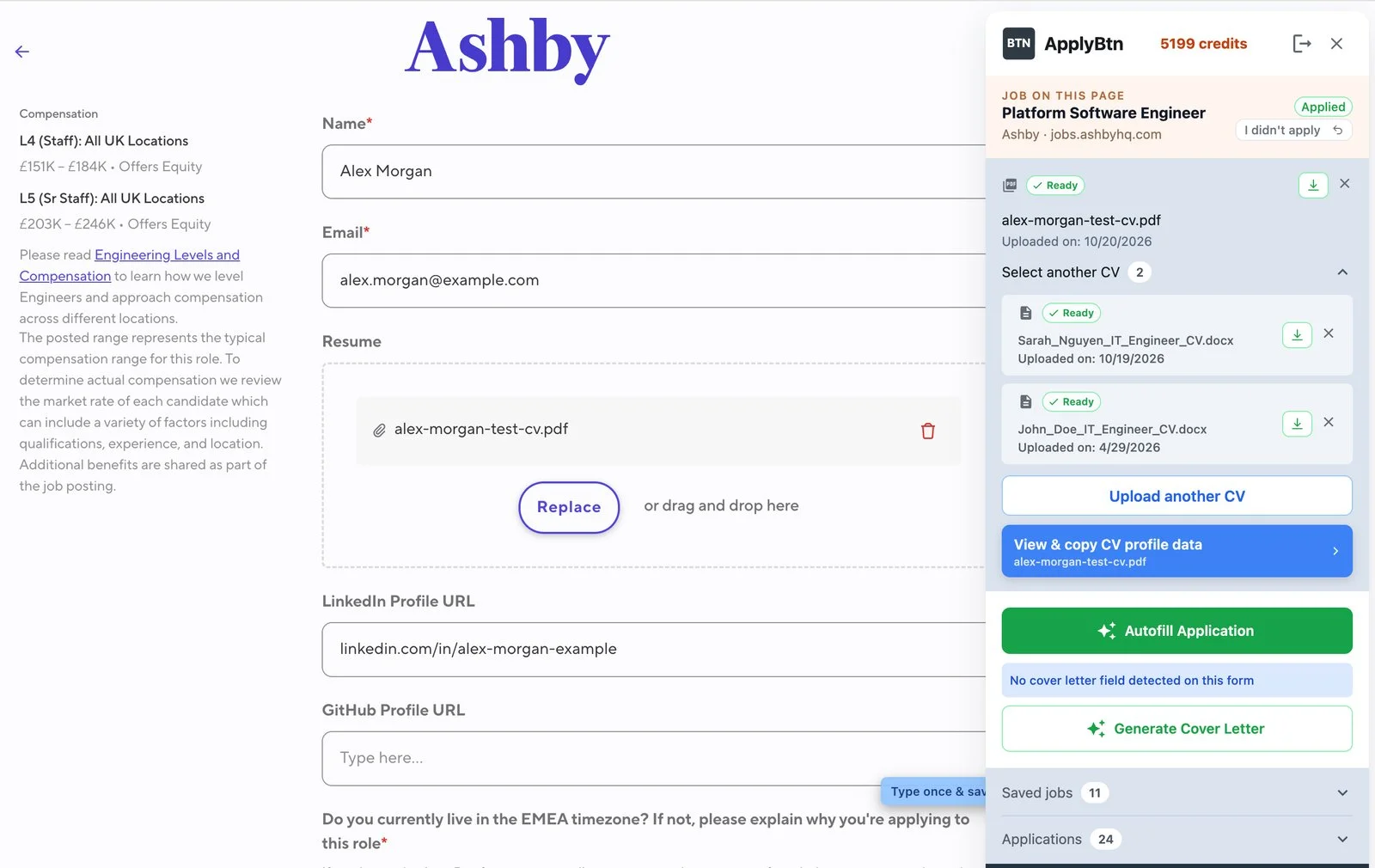
The sidebar shows the job on this page and the CV that is selected right now. Your CV is your profile: ApplyBtn reads it once, when you upload it, and fills forms from what it found. There is no profile form to fill in.
You can upload as many CVs as you need. Upload another CV adds one. Select another CV opens the list, and a click makes that CV the selected one.
The selected CV is the one Autofill uses for this application. Everything you save with Remember (Step 5) goes into that CV's profile. If you keep one CV per kind of role, pick the right one before you fill.
Uploading and reading a CV is free.
Step 3. Autofill the form
Click Autofill Application in the sidebar, or the Autofill tile on the strip. ApplyBtn fills the fields it knows from the selected CV: contact details, links, work history, education, and the CV upload itself.
While it works, the strip shows Filling…. Autofill is free, and it never submits the form. Dropdowns, checkboxes and radio buttons stay yours, with two exceptions: the "I currently work here" box, and a searchable country or city box when your CV value matches an option.
Step 4. Generate a cover letter
Click Generate Cover Letter in the sidebar, or the Cover letter tile on the strip. The panel Cover Letter with AI opens. You can give it one short instruction, or pick one of the chips (shorten, sharpen, simplify, remove clichés, and so on), then click Generate.
ApplyBtn's AI Cover Letter Generator writes the letter from the selected CV and the job description. Read it and make it yours. Download PDF always works. Add to form puts the letter into the form's cover letter box, or attaches it as a PDF, and it is available once Autofill has run on this form and found a cover letter field. When the form has no cover letter field, the sidebar tells you so, and you keep the PDF.
Writing a cover letter uses credits. The panel says so above the Generate button.
Step 5. Check the filled fields and save what was missing
Read every field Autofill filled. You can change any value in place, on the form. Two markers help with the rest:
- Type once & save marks an empty field that your CV could not answer, like your current location. Type the value, then click the orange Remember button under the field. ApplyBtn saves it into the selected CV's profile, and the next form gets it from Autofill.
- Needs your input marks a question only you can answer. Salary expectations, your right to work and other personal declarations always stay yours: ApplyBtn is built not to guess them from your CV.
Remember is free.
Step 6. Generate answers to the open questions
Questions that need sentences, like "Please state your skills, knowledge, education and experience which qualify you for this role", are left empty by Autofill. Each one gets a Generate button under the field. Click it, and the AI Job Application Answer Generator, part of Autofill, writes a draft from your CV and the job description. You can click Generate on several questions at once.
Under a generated answer you get Retry, which writes it again, and Improve, which opens a panel where you say what to change. When the AI needs a fact only you know, the button turns orange and reads AI has a question: click it and answer. Read every draft before you keep it: is every fact true, does it answer the question, does it sound like you? You can also edit the text in place.
Generate and Improve use credits. Writing the answer yourself is always an option.
Step 7. Switch to another CV and autofill again
If another CV fits this job better, you can switch and fill again. Open Select another CV, click the CV you want, and click Autofill Application again. ApplyBtn fills the form from the new CV.
The CV upload field on the form changes too, so the employer gets the CV you filled from.
Step 8. Follow your applications
After Autofill, the job in the sidebar reads Autofilled · not applied. You submit the form yourself. ApplyBtn never submits for you. When you do, ApplyBtn sees the form go out, checks later whether the submit went through, and marks the application Applied. If it could not tell, click Set to applied yourself; if it got it wrong, click I didn't apply.
The sidebar keeps two lists. Applications holds every form you autofilled, with its status. Saved jobs holds the jobs you saved with the Save button, from any page, with or without a form. Saving is free.
The same lists are on the website, in the Job Application Tracker: every application with the CV you used, your answers, the job's facts and the cover letter versions, free. One limit to know: only applications you autofilled with ApplyBtn are followed to Applied. A form you filled fully by hand is not tracked.
That is the whole loop: one CV upload, one click to fill, a letter and answers when you want them, and every application kept for you. For more detail on each part, see the tips for using ApplyBtn on job application forms.